


How to train AI on your brand guidelines: what to prepare
To train AI on your brand guidelines, first decide what the model should learn: a style, a product, a person or a scene. Then pick reference images that show only that one thing, consistently and in good quality. In Samsa, one image is enough to start and 2–5 give the best results. Training is free and unlimited on every plan. You need the rights to every image you upload.
What are the steps to train AI on your brand guidelines?
Seven steps, in this order. The printable checklist is at the end.
- Pick the model type: style, product, person or scene.
- Choose the images that show that one subject.
- Decide how many: one works, 2–5 is best, strongest first.
- Check the quality: sharp, well exposed, at least 512 × 512 px.
- Clear the rights for every image, and consent for every person shown.
- Write down the rules that images can’t show, as custom instructions.
- Train, test, retrain. Training is free, so iterate.
Why aren’t brand guidelines in a PDF enough?
Because a custom model learns from what it sees. Your brand book describes a look in words and numbers: colour codes, typefaces, spacing, a page of don’ts. A trained image model gets its sense of your brand from example images instead. In Samsa you upload a few reference images, and the model learns the visual identity they share.
So preparing to train AI on brand guidelines is mostly curation: finding the images that already show your brand the way you want it, and leaving out the rest. A narrow set teaches a clear look. A mixed folder teaches a blur.
The written guidelines still matter. Some rules can’t be seen in a picture, such as how people should face the camera or what never appears next to your logo. Those go into the model’s custom instructions, covered in step 6.
Step 1: What should the model learn?
One subject per model. Samsa trains four types of custom model, and each learns a different thing from your images. Decide which one you need before you open a single folder.
| Model type | What it learns | Typical brand use |
|---|---|---|
| Style | A visual treatment: illustration style, photo look, colour palette and lighting | Campaign look, illustration system, photo aesthetic |
| Product | One specific item with its shape, label and details | Packshots, lifestyle scenes, social posts |
| Person | One specific person’s face and appearance | Brand ambassador, spokesperson, recurring character |
| Scene | One environment: a room, a building, a location | Your shop, office, showroom or a signature place |
Not sure a trained model is the right tool at all? The guide to three ways to on-brand AI images compares it with plain prompts and single reference images.
Why does each model need a single subject?
A model trained on mixed material learns the average of it. Put two illustration styles in one style set and you get neither. Put three products in one product set and the model can’t tell which details belong to which. The same goes for two people in one person model, or two locations in one scene model.
So if your brand has two looks, say a photo style for campaigns and a flat illustration style for explainers, train two style models.
How do you combine models instead of mixing them?
Keep the sets separate and combine the finished models in the prompt. Samsa lets you use several trained models of different types in one image: add them with the + button, or type @ to pick one.
A typical brand setup: a product model of your bottle, a scene model of your flagship store and a style model for your campaign look, all in one prompt. Each model stays clean, and the combination does the rest.
Step 2: Which reference images should you pick for each model type?
The best set shows your subject clearly, several times, with enough variation that the model understands what stays the same. What "variation" means depends on the type. Here is what to pick and what to leave out for each of the four.
Style model: one look, many subjects
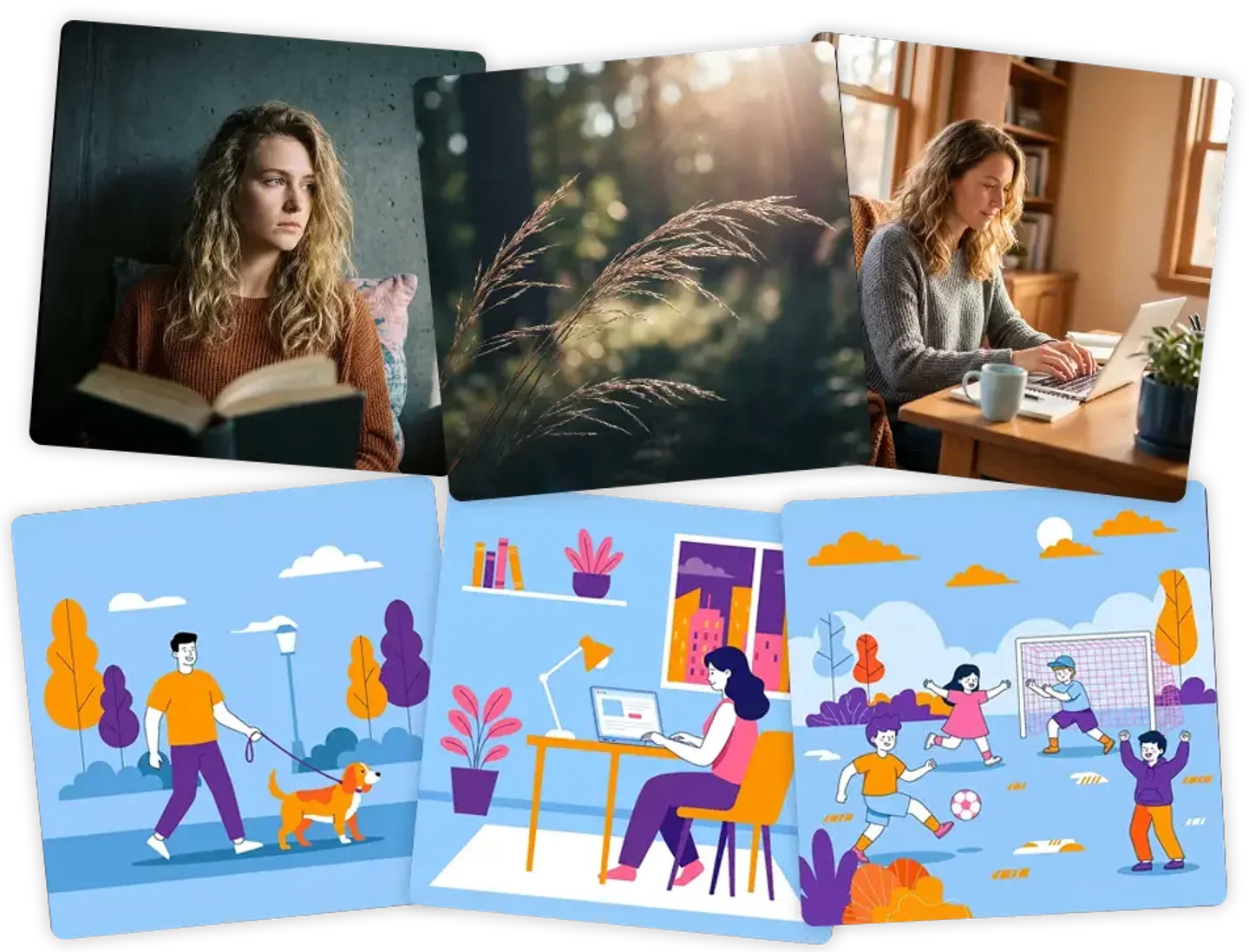
A style model should learn the look, not the content. So the images should share the look and differ in everything else.
Pick:
- Images that clearly show the style: the colour palette, the lighting, the line work or the photo treatment.
- Different subjects in that same style: people, objects, places.
- Different compositions and scenes, so the model does not tie the style to one layout.
- High-quality, high-resolution files.
Avoid:
- Two or more styles in one set.
- Images where the style is hard to see, for example a mostly empty frame.
- Too much variation in the visual approach itself.
Then do the ranks test: lay the images side by side. If one image breaks the ranks, remove it.
Product model: the whole product, from every side
A product model has to learn one item precisely enough to place it in any scene.
Pick:
- The product fully visible and in sharp focus.
- Several angles: front, side, top and three-quarter.
- A clean, neutral background, white or grey works well.
- Consistent lighting across the set.
- The product filling a large part of the frame.
Avoid:
- Busy backgrounds and props that compete with the product.
- Cropped views where part of the product is missing.
- Heavily edited or filtered photos.
- Several different products in one set: train one model per product.
If you have clean e-commerce packshots, they already meet most of these points. To go from there to finished visuals, see how AI product photography works with a trained product model.
Person model: one face, many situations
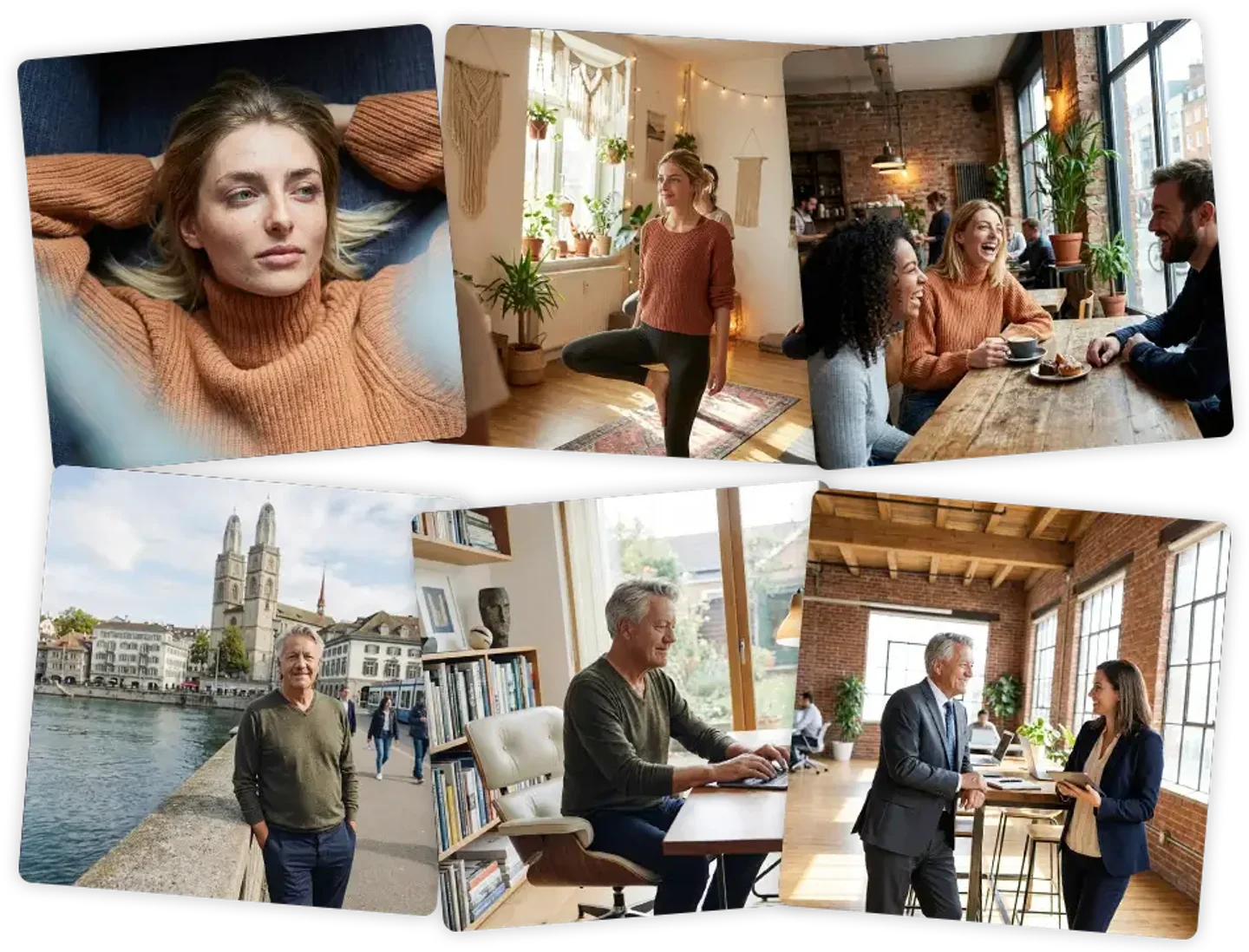
A person model learns a face and an appearance. It needs to see that face clearly, from several sides, in more than one situation.
Pick:
- Photos where the face is clearly visible in every image.
- Different angles: front, profile and three-quarter.
- Different expressions: smiling, neutral, serious.
- Different lighting and backgrounds, indoors and outdoors.
- Only that person in the frame.
Avoid:
- Sunglasses, masks or anything else covering the face.
- Heavy make-up or costumes.
- Group photos.
- Extreme angles, blur and heavy filters.
Consent comes first
Before you train a model on a real person, get that person’s consent. Samsa’s terms prohibit realistic images or videos of an identifiable real person without their consent. Step 5 explains what that means for employees and external talent.
Scene model: the whole space, as empty as possible
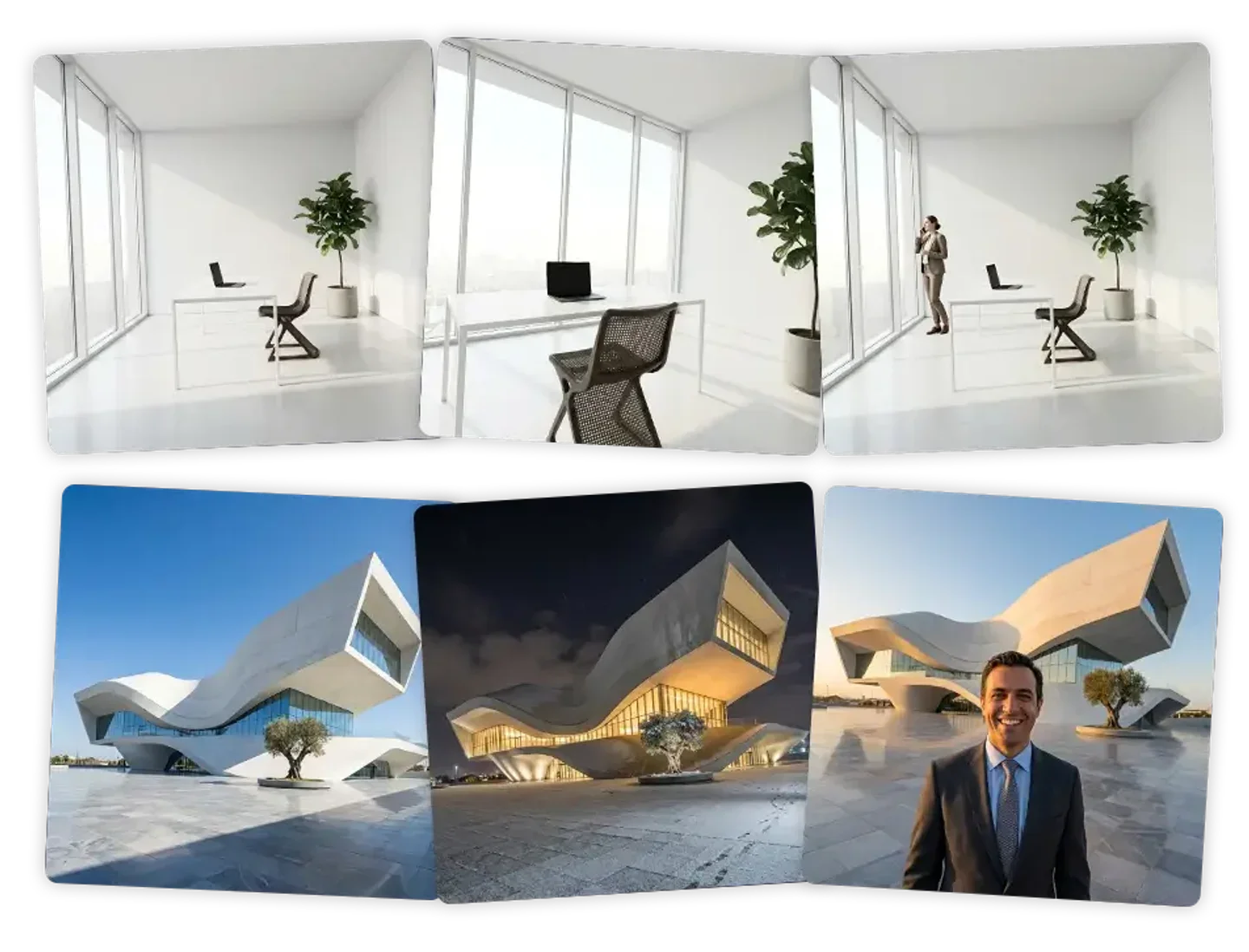
A scene model learns a place, so that you can put people and products into it later. The images should show the space itself, not what happens in it.
Pick:
- Wide shots that show the full environment.
- Several perspectives of the same space.
- Different times of day, if that matters for your brand.
- Empty or nearly empty scenes.
Avoid:
- Crowds that hide the space.
- Lots of temporary objects, such as event furniture or delivery boxes.
- Several locations in one set.
- Blurry images, or weather that hides the view.
More brand images made this way are in the examples generated with Samsa.
Step 3: How many images do you need to train AI on brand guidelines?
In Samsa, one image is enough to train a model, and 2–5 images give the best results. That rule is the same for style, product, person and scene models. One good image gets you started; a few more give the model the variety it needs to tell what is constant about your subject.
Two things matter more than the count:
- Order. Image order affects the result. Put your strongest, most typical images first. If the results disappoint, reorder the set and train again.
- Consistency. Every image should show the same subject or the same style. If one image breaks the ranks, take it out rather than keep it to make up the numbers.
A note on scope: these numbers are Samsa’s. Other tools train in other ways and may ask for larger sets. If you follow a different guide for a different tool, use its numbers there.
Step 4: How do you check image quality before you upload?
Check every file against a short list before it goes into a training set. The model learns whatever is in the images, including blur, noise and compression artefacts.
- Resolution: at least 512 × 512 px; 1,024 × 1,024 px or more is recommended. Higher resolution means more detail for the model to learn.
- Sharpness: in focus, with no motion blur.
- Exposure: neither too dark nor blown out.
- Format: JPG or PNG.
- Compression: avoid heavily compressed files, such as images saved from a chat app or downloaded from social media.
- Overlays: no watermarks, text overlays or frames.
Step 5: Which rights do you need before you train?
You need the rights to every image you train on, and the consent of every person those images show. Most guides on this topic skip it, yet it decides whether you may use the results commercially.
Commercial use depends on your training images
Samsa grants commercial use of the images you create on every plan, provided you hold the rights to the images in your training set. Without the appropriate licences from the copyright or IP holders, Samsa cannot give you commercial usage rights. So the rights check happens before the upload, not after the campaign.
Agency, photographer and stock images
Many brand images were made by someone else: an agency, a freelance photographer, a stock library. Owning a file is not the same as holding the rights to use it as training input. Check the licence or the contract, and ask the rights holder if it is unclear.
Under Samsa’s terms of service, you warrant that you have the necessary rights to use what you upload. Your uploads are used exclusively for your own model training, and Samsa never uses your data to train or optimise other users' models.
People: get consent
For a person model, the rights question has a second half: the person. Samsa’s terms prohibit realistic image or video content of an identifiable real person without that person’s consent. They also require you to obtain all necessary consents for images of employees or other people that you upload.
In practice: if you train a model on your CEO, a colleague or hired talent, get their consent in writing first, and make sure it covers AI-generated images. For talent booked through an agency, check that the booking allows it.
This section explains Samsa’s rules. It is not legal advice. For a specific contract or licence, ask your legal team.
Step 6: Where do the rules go that images can’t show?
Into the model’s custom instructions. Custom instructions are rules that Samsa applies to every generation with that model. They are the place for the parts of your brand guidelines that a picture can’t carry.
Good candidates:
- Framing rules, such as "always show people from the front".
- Things that must never appear with your product.
Models are private by default. You can share a model with your organisation, and when you do, your team gets the model and its custom instructions. Everyone generates with the same subject and the same rules. You can train your first brand model and set its instructions in the same place.
Step 7: How do you test and retrain the model?
Train, look at the results, fix the set, train again. Training takes about 15 seconds, and it is free and unlimited on every plan, so each round costs you nothing but a few minutes of attention. Generating images with the model costs credits, the same as any other generation.
A simple test routine:
- Generate with a few different prompts, not just one.
- Check consistency: does the product keep its label, does the person look like themselves, does the style hold across subjects?
- If something is off, look at the set first: reorder the images, remove the one that breaks the ranks, or replace a weak image.
- Retrain whenever results are inaccurate or inconsistent, or when better images become available.
Once the model holds, the same trained models work for on-brand video as well as images. For details on each setting, the help centre’s Train AI Models collection has step-by-step articles.
Which mistakes should you avoid?
Five common mistakes, and all five can be fixed before you press train.
- Too little variety: five photos of the same pose teach the pose, not the person.
- Mixed subjects: two products, two styles or two places in one set.
- Poor image quality: blur, low resolution, heavy compression.
- The wrong model type: training a style model when you meant to teach a product.
- Distracting backgrounds: a busy scene that the model learns along with the subject.
What doesn’t this checklist solve?
Three limits, stated plainly so you can plan around them:
- It is not legal advice. It tells you which rights and consents Samsa’s terms require. Whether a specific licence covers AI training is a question for the contract and your legal team.
- The numbers are Samsa’s. One image to start and 2–5 for the best results is how Samsa trains. Other tools may need different sets.
- A model does not replace your written rules for copy. It keeps visuals consistent. Headlines, tone of voice and legal lines still follow your brand book.
The checklist: what to prepare per model type
Print this or copy it into your project brief before a training session. Every row assumes one subject per model.
| Model | Pick | Avoid | How many | Rights check |
|---|---|---|---|---|
| Style | One clear look across different subjects and compositions | Mixed styles, style barely visible, one image that breaks the ranks | 1 works · 2–5 best | Licence for every image |
| Product | Whole product in focus, several angles, neutral background, consistent light | Busy backgrounds, partial views, heavy filters, several products | 1 works · 2–5 best | Licence for every image |
| Person | Clear face, several angles and expressions, varied light and backgrounds, one person only | Sunglasses or masks, costumes, group photos, blur | 1 works · 2–5 best | Licence + consent of the person |
| Scene | Wide shots, several perspectives, empty space, times of day if relevant | Crowds, temporary objects, several locations, bad weather | 1 works · 2–5 best | Licence for every image |
For all four: at least 512 × 512 px (1,024 × 1,024 px recommended), sharp, well exposed, JPG or PNG, strongest images first.
Train AI on brand guidelines: frequently asked questions
How many images do I need to train an AI model on my brand?
In Samsa, one image is enough to train a model, and 2–5 images give the best results. The rule is the same for style, product, person and scene models. Put the strongest images first, because order affects the result, and remove any image that doesn’t match the rest. Consistency matters more than quantity.
Does training a custom model cost extra?
No. Training is free and unlimited on every Samsa plan, so you can retrain as often as you like. Generating images with a trained model costs credits, the same as any other generation. The credit rates per image and video are on the pricing page.
How long does training take?
About 15 seconds per model. Because training is free and unlimited on every plan, the usual workflow is to train, test a few prompts, adjust the image set and train again. The preparation in this guide takes longer than the training itself, and it is what decides the quality of the model.
Can I use photos from our agency or a stock library?
Only if your licence allows it. You need the rights to every image you train on, and Samsa’s terms make you warrant that you have them. Commercial use of the results is granted on every plan provided you hold the rights to your training images. Check the agency contract or stock licence before you upload, and ask the rights holder if it is unclear.
Can I train a model on a real person, for example our CEO?
Yes, with that person’s consent. Samsa’s terms prohibit realistic images or videos of an identifiable real person without their consent, and require you to obtain the necessary consents for images of employees and other people you upload. Get the consent in writing before training, and make sure it covers AI-generated images.
Can I combine a product model with a scene or style model?
Yes. You can use several trained models of different types in one prompt, for example a product model of your bottle, a scene model of your store and a style model for your campaign look. Add them with the + button or by typing @. That is why each model should stay focused on one subject.
Train your first brand model
Pick your images with the checklist, then train in about 15 seconds. Training is free and unlimited on every plan.